Mastering Tool Changes: How to Use Different G-Codes with the Same Coordinates in Your CNC Software
This article provides an in-depth exploration of CNC software, covering foundational concepts, practical applications, and engineering insights.
If you have spent any time working with a CNC router, you know that detailed woodworking projects often require more than a single bit. Whether you are clearing out material with an end mill or cutting fine details with a v-bit, managing multiple toolpaths is an essential skill. But how do you run different G-code files on the same project without losing your alignment? The secret lies in maintaining the exact same coordinate system inside your CNC software.
Why Use Different G-Codes on the Same Origin?
When setting up a complex project, trying to force every toolpath into a single G-code file can cause issues, especially if your machine requires manual bit changes. By splitting your design into multiple G-code files according to the tool required, you gain far better control over the carving process.
The key to making this strategy work is using a unified zero point (X, Y, and Z origin). Even though you are executing completely different sets of movement commands, keeping your X and Y coordinates anchored to the exact same reference point ensures that every pocket, profile, and detail aligns perfectly every single time.
Streamlining Your Workflow in CNC Software
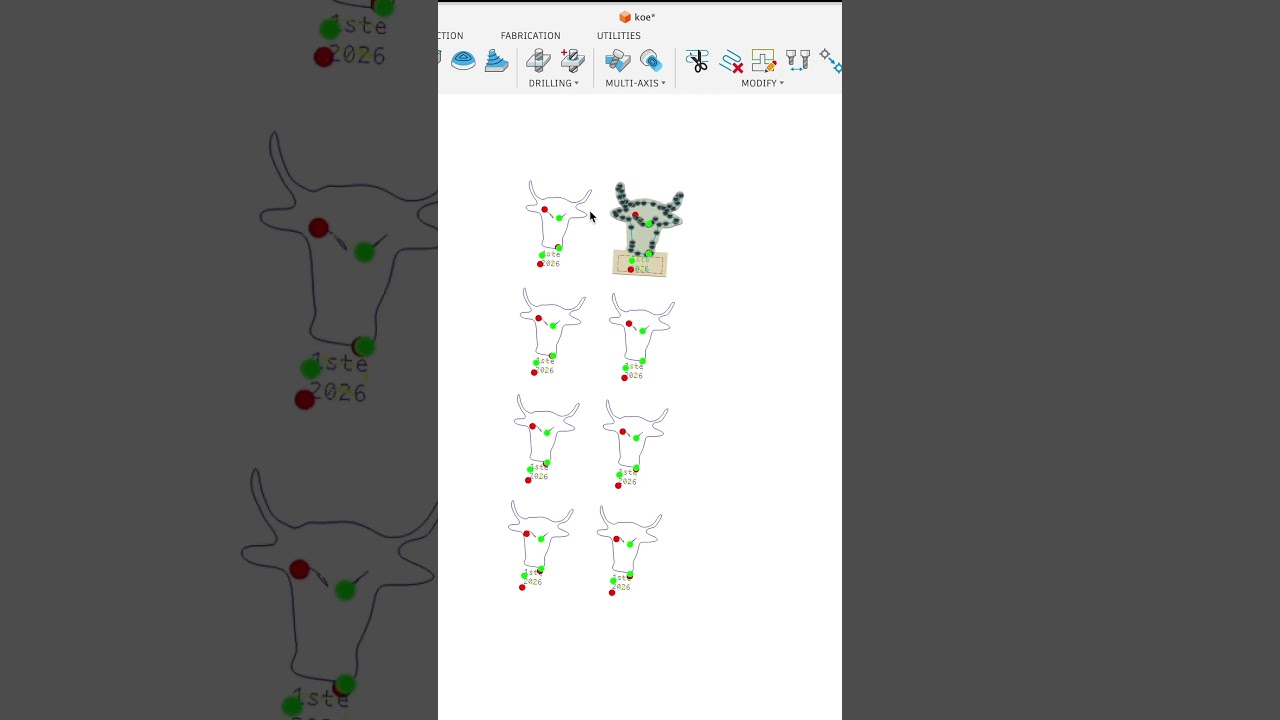
To achieve flawless accuracy, your setup starts long before you turn on your router spindle. Inside your preferred CNC software, design your entire project within a single workspace. This guarantees that every distinct toolpath shares an identical X and Y datum (zero location).
When you are ready to export and run your files, follow this simple routine:
- Group Toolpaths by Bit: Organize your operations by tool type (e.g., Roughing Clearance, Finishing Pass, V-Carving).
- Export Individual G-Codes: Save separate G-code files for each bit, making sure the project origin remains unchanged in the design file.
- Set XY Zero Once: Set your CNC machine's X and Y zero positions on your workpiece material and do not reset them between tool switches.
- Re-Zero the Z-Axis Only: After physically changing the bit for the next pass, re-zero only the Z-axis (using a touch plate or tool setter) before running the next G-code file.
Elevate Your Woodworking Precision
Mastering this technique allows you to take on multi-stage, highly detailed projects with complete confidence. By leveraging the flexibility of modern CNC software and keeping your X/Y coordinates locked in, you can produce professional-grade crafts without needing expensive automated tool changers.


